Databricks Tips #7: Docker on Databricks — custom containers for environments that don’t break
Databricks Tips
Data Engineering
Delta Lake
Databricks Container Services, custom images, golden containers, CI/CD with Docker, and the mistakes that will cost you hours.
Hands-on lab — Dockerfile + notebook to try DCS on Databricks Free Edition.
Seventh installment of Databricks Tips. Yes, Databricks Runtime already gives you a curated environment with Spark, pandas, MLflow and everything standard pre-installed. So why Docker? The problem shows up when you need something the runtime doesn’t ship with: system libraries like GDAL or C compilers, specific versions that clash with the runtime’s, or a locked-down environment that doesn’t change between DBR releases. That’s where Databricks Container Services comes in.
Docker in 2 minutes (for those who’ve never used it)
If you already know what Docker is, skip to the next section. If not, here’s the short version.
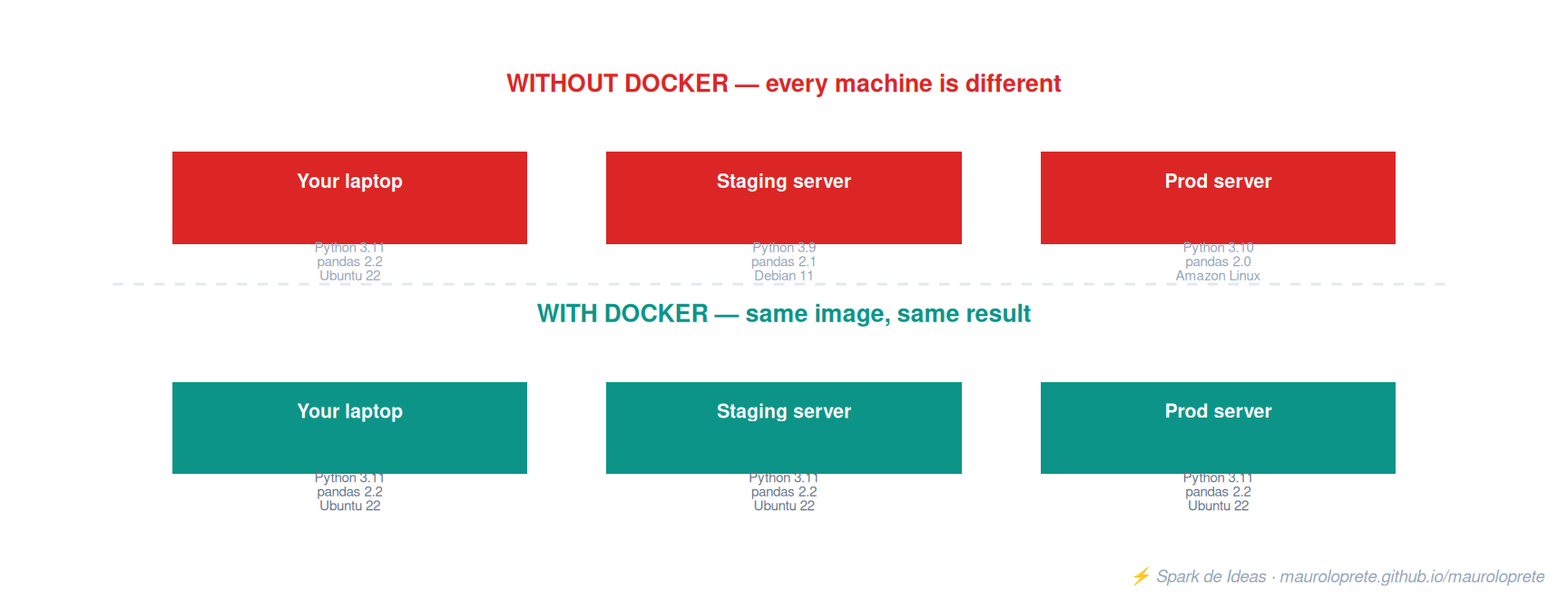
Imagine you have a cooking recipe. You can hand someone the recipe and hope they have the same ingredients, the same oven and the same temperature… or you can hand them the entire kitchen, packaged up with everything inside. That’s Docker: you package your code + dependencies + configuration into an image that runs the same on any machine.
The key concepts:
- Image: the package with everything inside (OS + libraries + config). It’s built from a
Dockerfile. - Container: a running instance of that image. You can have many containers from the same image.
- Registry: where you store your images (Docker Hub, Amazon ECR, Azure ACR). It’s like a “GitHub for Docker images”.
- Dockerfile: the recipe to build the image. Each
RUNline adds something to the environment.
# Basic Dockerfile example
FROM python:3.11-slim          # Start from a base image
RUN pip install pandas==2.2.3  # Install dependencies
COPY mi_script.py /app/        # Copy your code
That’s all you need to know to follow the rest of the post.
What is Databricks Container Services (DCS)
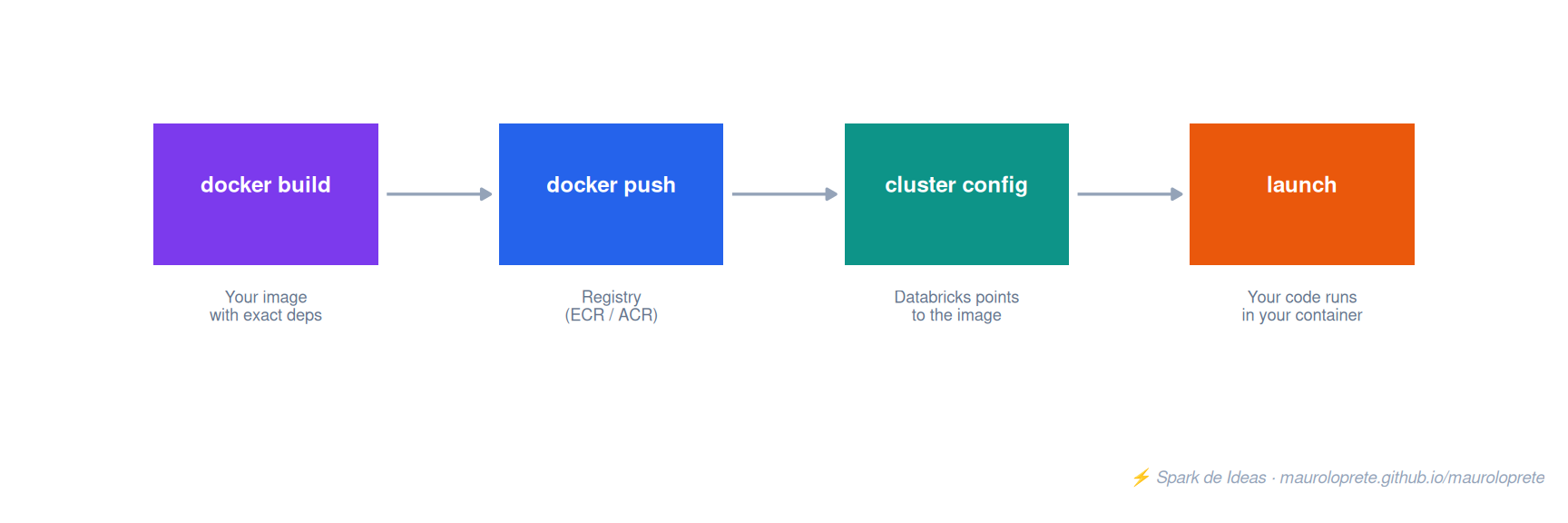
Instead of using the default runtime, DCS lets you start your compute with your own Docker image. You define the exact dependencies, bake them into the image, and Databricks uses it as the execution environment.
But heads up: you don’t put Spark in the image. Here’s what happens internally when you launch a cluster with DCS (source):
- VMs are acquired from the cloud provider
- Your Docker image is downloaded from the registry
- Databricks creates a container from your image
- The Databricks Runtime code (Spark, JVM, dbutils) is copied into the container
- Init scripts run (if any)
In other words, Databricks injects Spark into your container at startup. That’s why it ignores CMD and ENTRYPOINT — it needs to control the startup process. You only bring the dependencies; they bring the runtime.
What’s new (2025-2026): DCS now supports Standard Compute (shared clusters with isolation). Before, it only worked on Dedicated Compute. This changes everything, because now you can have a shared Docker environment without needing one cluster per person.
0. Enabling DCS (prerequisite)
Before doing anything else, a workspace admin has to enable Container Services. If you don’t, the Docker tab won’t show up when creating compute.
On AWS: Settings → Advanced → Container Services → Enabled.
On Azure (there’s no toggle in the UI): it’s done via CLI:
# Enable DCS on Azure Databricks
databricks workspace-conf set-status --json '{"enableDcs": "true"}' --profile <your-profile>

# Verify it's enabled (it should return "true")
databricks workspace-conf get-status enableDcs --profile <your-profile>
# Expected response:
# {
#   "enableDcs": "true"
# }
The set-status returns no output when it works — that’s normal. Always verify with get-status.
For Standard Compute (Beta): on top of the previous step, go to Settings → Previews → enable “DCS for Standard Compute”.
Important: after enabling it, the Docker tab only appears if you pick a compatible access mode:
- Single User or No Isolation Shared → the Docker tab appears
- Shared or Standard → it doesn’t appear (except for the beta with DBR 18.3+)
- Serverless → not supported
If you enabled everything and still don’t see the tab, check that your workspace is Premium tier.
1. The golden container: immutability in production
The most powerful DCS use case is the golden container: a Docker image that goes through CI/CD, gets security-scanned, and is deployed as the only authorized environment for production.
# golden.Dockerfile
FROM databricksruntime/standard:16.4-LTS

# Pinned dependencies — NEVER use pip install without versions
RUN /databricks/python3/bin/pip install --no-cache-dir \
    pandas==2.2.3 \
    scikit-learn==1.5.2 \
    great-expectations==1.3.0 \
    delta-spark==3.3.0

# System libraries pip can't install
RUN apt-get update && apt-get install -y --no-install-recommends \
    libgdal-dev \
    libgeos-dev \
&& rm -rf /var/lib/apt/lists/*# Build + push
docker build -f golden.Dockerfile -t mi-ecr.amazonaws.com/dbx-golden:v2.1.0 .
docker push mi-ecr.amazonaws.com/dbx-golden:v2.1.0The golden rule: never use :latest tags in production. Always version your images. If someone pushes a new :latest and your cluster restarts, your job breaks.
2. Configuring the cluster with Docker
There are two ways: UI and API/CLI.
From the UI:
- Create new compute → Advanced Options → Docker tab
- Select “Use your own Docker container”
- Enter the image URL
- Configure authentication (if your registry is private)
From the API (for automation):
The endpoint is POST /api/2.0/clusters/create (reference):
curl -X POST "https://<your-workspace>.cloud.databricks.com/api/2.0/clusters/create" \
  -H "Authorization: Bearer $DATABRICKS_TOKEN" \
  -H "Content-Type: application/json" \
  -d '{
    "cluster_name": "prod-golden-container",
    "spark_version": "16.4.x-scala2.12",
    "docker_image": {
      "url": "mi-ecr.amazonaws.com/dbx-golden:v2.1.0",
      "basic_auth": {
        "username": "{{secrets/docker/user}}",
        "password": "{{secrets/docker/pass}}"
      }
    },
    "node_type_id": "i3.xlarge",
    "autoscale": {
      "min_workers": 1,
      "max_workers": 4
    }
  }'
Or with the Databricks CLI:
databricks clusters create --json '{
  "cluster_name": "prod-golden-container",
  "spark_version": "16.4.x-scala2.12",
  "docker_image": {
    "url": "mi-ecr.amazonaws.com/dbx-golden:v2.1.0",
    "basic_auth": {
      "username": "{{secrets/docker/user}}",
      "password": "{{secrets/docker/pass}}"
    }
  },
  "node_type_id": "i3.xlarge",
  "autoscale": {
    "min_workers": 1,
    "max_workers": 4
  }
}'Tip: use Databricks Secrets for the registry credentials. Never hardcode usernames and passwords in the cluster config.
3. Dedicated vs Standard Compute: when to use each
With the arrival of DCS for Standard Compute, you now have two options:
| Dedicated Compute | Standard Compute (Beta) | |
|---|---|---|
| Base image | databricksruntime/standard:16.x |
databricksruntime/environment:v5-standard |
| Minimum DBR | Varies | 18.3+ |
| Init scripts | Can modify Python | Do NOT modify Python |
| ARM instances | Not supported | Supported (Graviton) |
| Isolation | Single user / No isolation | Standard (with isolation) |
| Libraries UI | Supported | Not supported |
My recommendation:
- Use Dedicated if you need init scripts that modify the Python environment or if your DBR is older than 18.3.
- Use Standard if you want to share a cluster across several users with a unified Docker environment.
4. The most common mistake: installing packages in the wrong path
This will happen to you, I guarantee it. You build your image, everything green locally, you launch the cluster and… your notebooks can’t find the libraries.
# BAD — installs into the system Python
RUN pip install pandas==2.2.3

# BAD — creates a separate virtualenv
RUN python -m venv /opt/myenv && /opt/myenv/bin/pip install pandas==2.2.3

# GOOD — uses the Databricks Python
RUN /databricks/python3/bin/pip install pandas==2.2.3
Databricks notebooks and jobs use /databricks/python3 as the interpreter. If you install packages into another path, they won’t be found.
5. Real-world use case: geospatial pipeline with GDAL + Prophet
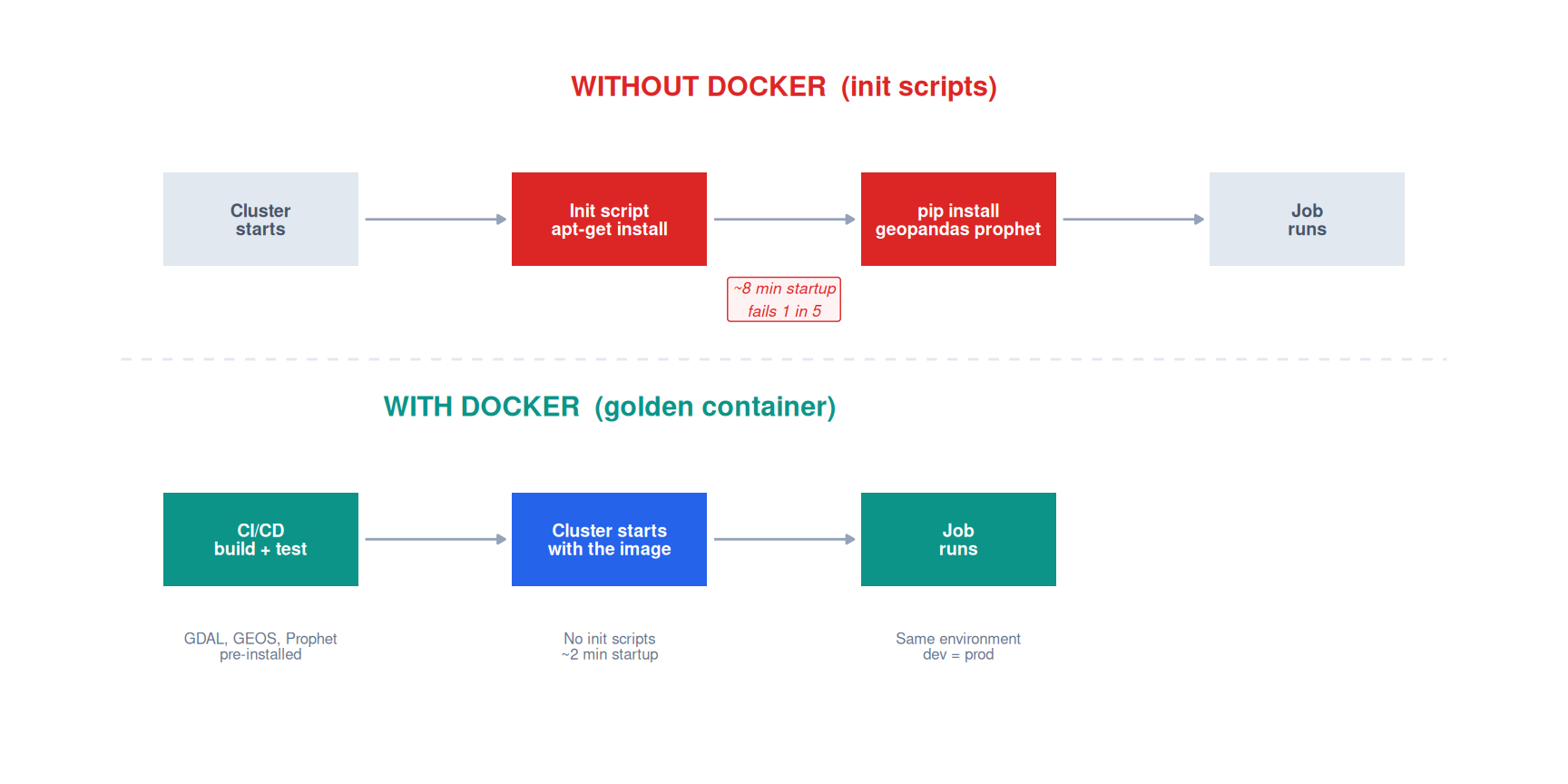
Where DCS becomes indispensable is when you need system libraries that can’t be installed with pip. A real example: a pipeline that joins delivery data with zone geometries and forecasts demand per area.
The Dockerfile for this case:
FROM databricksruntime/standard:16.4-LTS

# System libraries for geospatial work
RUN apt-get update && apt-get install -y --no-install-recommends \
    libgdal-dev \
    libgeos-dev \
    libproj-dev \
    gdal-bin \
    && rm -rf /var/lib/apt/lists/*

# Geospatial + forecasting stack
RUN /databricks/python3/bin/pip install --no-cache-dir \
    geopandas==1.0.1 \
    shapely==2.0.6 \
    fiona==1.10.1 \
    prophet==1.1.6 \
    pystan==3.10.0

# Validate that GDAL links correctly (this fails silently otherwise)
RUN /databricks/python3/bin/python -c "from osgeo import gdal; print(f'GDAL {gdal.__version__}')"
Without Docker, this setup requires a ~40-line init script that installs apt packages + compiles C dependencies. It takes ~8 minutes on every cluster startup and fails 1 in 5 times due to apt-get timeouts. With Docker, the dependencies are already baked in: the cluster starts in ~2 minutes and never fails because of dependencies.
The notebook stays clean:
# The notebook only has business logic — zero setup
import geopandas as gpd
from prophet import Prophet

# Read delivery zones from Unity Catalog
zonas = spark.table("prod.geo.zonas_delivery").toPandas()
geo_zonas = gpd.GeoDataFrame(zonas, geometry=gpd.points_from_xy(zonas.lng, zonas.lat))

# Forecast per zone
for zona_id in geo_zonas["zona_id"].unique():
    historico = spark.table("prod.demand.historico") \
        .filter(f"zona_id = '{zona_id}'") \
        .select("ds", "y").toPandas()

    modelo = Prophet(yearly_seasonality=True, weekly_seasonality=True)
    modelo.fit(historico)
    futuro = modelo.make_future_dataframe(periods=30)
    forecast = modelo.predict(futuro)

    # Save predictions as a Delta table
    spark.createDataFrame(forecast[["ds", "yhat", "yhat_lower", "yhat_upper"]]) \
        .withColumn("zona_id", lit(zona_id)) \
        .write.mode("append") \
        .saveAsTable("prod.demand.forecast_por_zona")
6. CI/CD: Docker as the centerpiece of your deploy
Where DCS really shines is when you integrate it with your CI/CD pipeline. Instead of installing dependencies on every startup (init scripts), you bake them into the image and test them before they reach production:
# .github/workflows/docker-dbx.yml
name: Build & Push Golden Container

on:
  push:
    paths:
      - 'docker/golden.Dockerfile'
      - 'docker/requirements.txt'

jobs:
  build:
    runs-on: ubuntu-latest
    steps:
      - uses: actions/checkout@v4

      - name: Build image
        run: |
          docker build -f docker/golden.Dockerfile \
            -t ${{ secrets.ECR_REGISTRY }}/dbx-golden:${{ github.sha }} .

      - name: Test — verify that imports work
        run: |
          docker run --rm ${{ secrets.ECR_REGISTRY }}/dbx-golden:${{ github.sha }} \
            /databricks/python3/bin/python -c "
              import pandas; import sklearn; import great_expectations
              print('All imports OK')
            "

      - name: Push to ECR
        run: |
          aws ecr get-login-password | docker login --username AWS --password-stdin ${{ secrets.ECR_REGISTRY }}
          docker push ${{ secrets.ECR_REGISTRY }}/dbx-golden:${{ github.sha }}

      - name: Tag as latest-stable
        run: |
          docker tag ${{ secrets.ECR_REGISTRY }}/dbx-golden:${{ github.sha }} \
                     ${{ secrets.ECR_REGISTRY }}/dbx-golden:latest-stable
          docker push ${{ secrets.ECR_REGISTRY }}/dbx-golden:latest-stable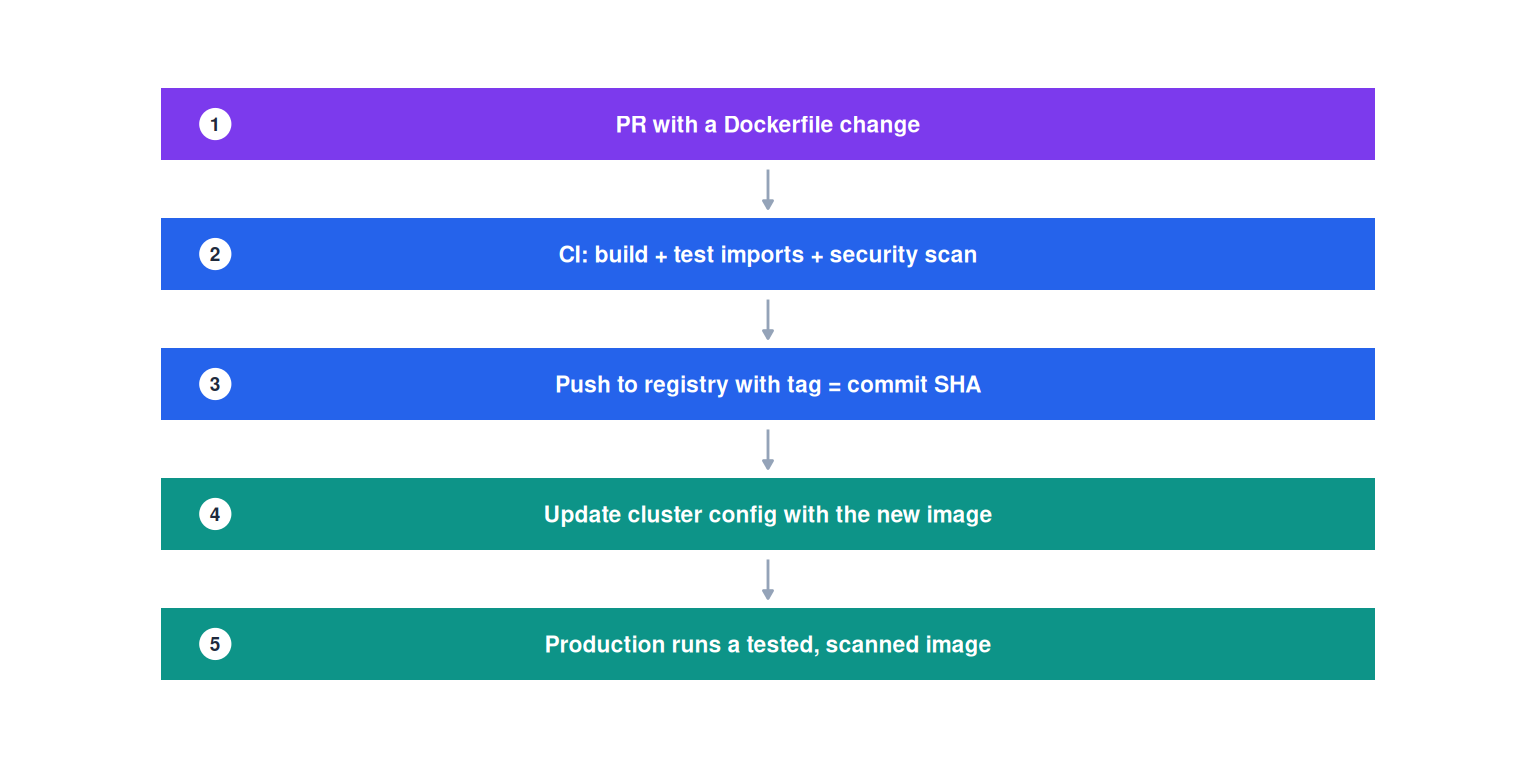
7. Gotchas that will cost you hours
Here are the traps nobody tells you about in the documentation:
Docker Hub rate limits: if you launch many clusters in a short time (aggressive autoscaling, large pools), Docker Hub will block you. Solution: use a registry in the same region and cloud as your workspace (ECR on AWS, ACR on Azure).
Init scripts on Standard Compute: on Dedicated, init scripts can install Python packages. On Standard, they can’t. Everything has to be in the Docker image. If you’re coming from init scripts for dependencies, you have to migrate everything to the Dockerfile.
Ignored Docker instructions: Databricks ignores CMD, ENTRYPOINT, USER, EXPOSE and HEALTHCHECK. Don’t waste time configuring them.
No DBR for ML: DCS is not compatible with Databricks Runtime for Machine Learning. If you need TensorFlow or PyTorch with GPU, you have to install them yourself in the image, including CUDA and cuDNN.
The Docker tab doesn’t show up: check three things: (1) that DCS is enabled (on Azure only via CLI), (2) that the access mode is Single User or No Isolation Shared, and (3) that your workspace is Premium tier. If any of the three is missing, the tab doesn’t appear and won’t tell you why.
8. When NOT to use Docker on Databricks
DCS isn’t for everyone. Don’t use it if:
- Your team is small and the dependencies are simple (a
requirements.txtwith 5 libraries) - You don’t have a CI/CD pipeline to build and test images
- You need to install libraries quickly to experiment (init scripts or cluster libraries are nimbler for exploration)
- You use Databricks Runtime for ML and don’t want to rebuild the whole GPU stack
Use it when:
- You need guaranteed reproducibility across environments (dev/staging/prod use the same image)
- You have system dependencies (apt packages, C libraries) that can’t be installed with pip
- You want a locked-down, security-approved environment
- Your team is large and init scripts have become unmaintainable
DCS checklist
| Step | Question | If you skip it… |
|---|---|---|
| Enablement | Is DCS enabled in your workspace? (CLI on Azure) | The Docker tab doesn’t appear |
| Access mode | Are you using Single User or No Isolation Shared? | The Docker tab doesn’t appear |
| Base image | Are you extending the official Databricks image? | Possible incompatibilities with the runtime |
| Python path | Do you install into /databricks/python3? |
Notebooks can’t find your libs |
| Versioning | Do you use versioned tags (not :latest)? |
Non-reproducible builds |
| Registry | Is your registry in the same region/cloud? | Slow startups + rate limits |
| CI/CD | Do you test the imports before pushing? | Clusters that start but fail at runtime |
| Secrets | Are the registry credentials in Databricks Secrets? | Credentials exposed in the config |
References
- DCS for Dedicated Compute — Azure — official documentation on building images, configuring clusters and authentication.
- DCS for Standard Compute — Azure — the new beta with Spark Connect and shared compute support.
- DCS on GPU compute — Azure — custom containers with GPU for deep learning.
- Databricks CLI — workspace-conf — reference for the command to enable DCS via CLI on Azure.
- Databricks Secrets — Azure — for storing registry credentials securely.
- Init scripts — Azure — initialization scripts and how they interact with DCS.
- Databricks base images — Docker Hub — the official images you should extend.
- Example Dockerfiles — GitHub — the Dockerfiles Databricks uses internally to build its base images.
Other posts in the series
If this post helped you, check out the previous Databricks Tips:
- Tips #1: Databricks Asset Bundles — advanced DABs patterns, complex variables, multi-target deploys.
- Tips #2: Delta Lake — Liquid Clustering, OPTIMIZE, VACUUM, and the 7 things I wish someone had told me earlier.
- Tips #3: Unity Catalog — governance model, inherited GRANTS, row/column security.
- Tips #4: Structured Streaming — watermarks, triggers, and the micro-batch traps.
- Tips #5: MLflow + Unity Catalog — from experiment to model in production.
- Tips #6: Feature Engineering — Feature Store, point-in-time lookups, online features.
Next week: Lakeflow Declarative Pipelines (formerly DLT) — expectations, materialized views and serverless compute.